The booking screen
Clicking any booking opens its own page. Everything about that rental is here, and everything you can do to it is here too.
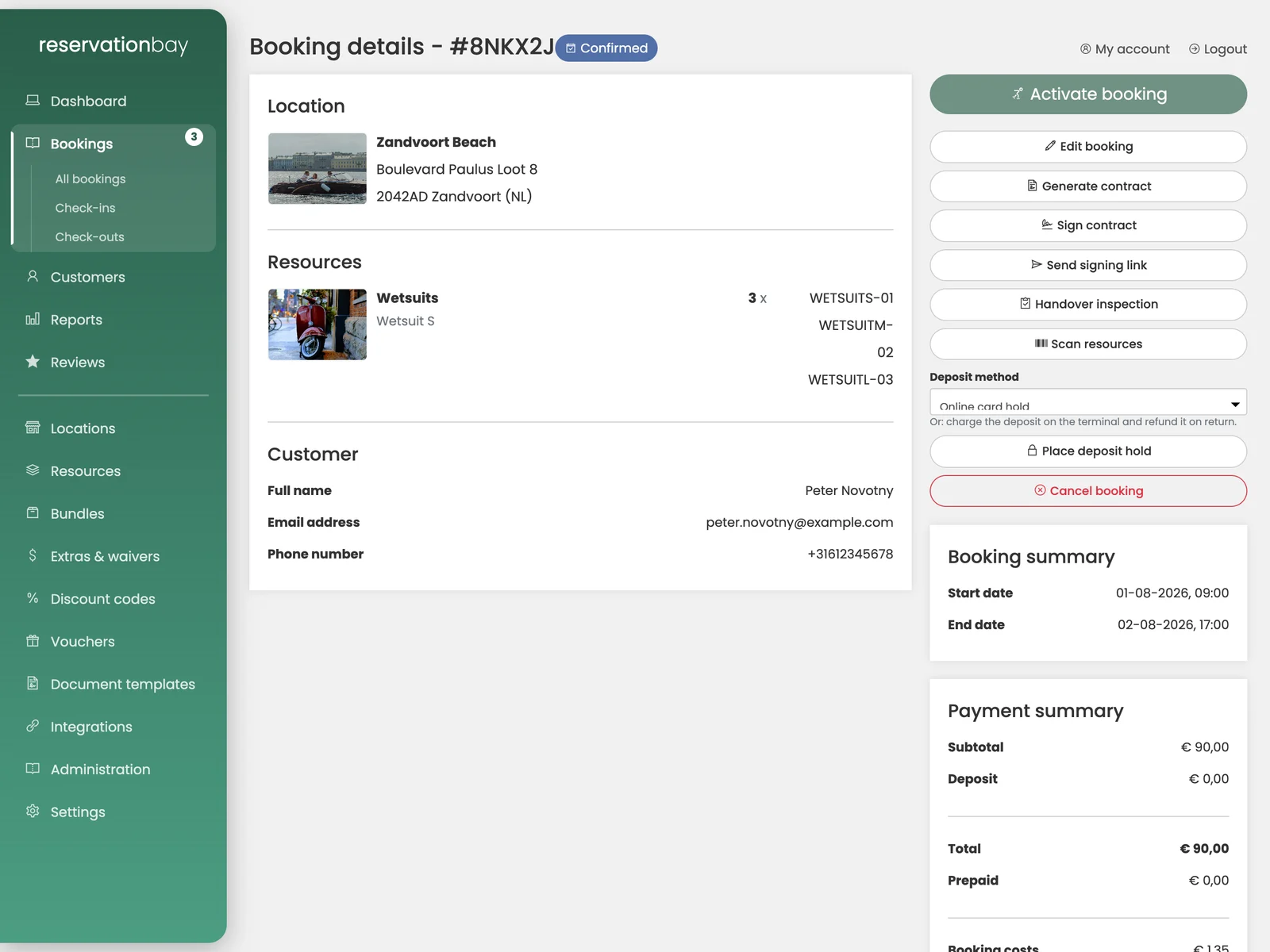
What is on the page
Left: the booking summary (period, times), the booking lines, the customer, and the payments.
Right: the buttons that change something, the payment summary, and the deposit.
The payment summary lists: subtotal, deposit, discount, bonus, total, prepaid and total paid. Below it, Booking costs breaks down what each line contributes.
Moving the booking through its life
The buttons on the right follow the natural order of a rental:
| Button | When you use it |
|---|---|
| Confirm booking | A new booking you accept. |
| Start booking | The customer collects. The booking becomes in progress. |
| Complete booking | Everything is back and settled. |
| Cancel booking | The rental is called off. You record the date and a reason. |
Change booking status lets you set a status directly when the ordinary buttons do not fit. It shows the current status and asks for the new one.
Editing the booking
Edit booking opens the booking in the same form you used to create it, with the lines filled in. You can change the period, and add, change or remove category lines, bundles and extras.
When you change the dates, the booking is priced again, but at the rates that were agreed when the booking was made, not at today's rates. If you have since raised your prices or changed your waiver percentage, an existing booking keeps what it was sold at. Only lines you add during the edit are priced at today's rates.
Bookings made before the portal started storing that agreement cannot have their lines edited, and say so: The lines of this (older) booking can't be edited. You can still change their status, take payments and cancel them.
Payments
The payments block lists every payment attempt on this booking with its date, status, method, amount and whether it was a test.
Payment starts a new one. You choose:
- Cash: completed immediately at the counter.
- Terminal (PIN): you pick which terminal, and the customer pays on it. The screen waits, showing Waiting for customer…, and updates itself when the terminal reports back.
- Online: the customer pays on their own phone.
Outstanding amount shows what is still owed, so you can take a part payment without doing arithmetic. Cancel payment calls off one that has not completed.
A separate Deposit and Deposit refund payment type keeps security money apart from rental money on the booking.
The deposit
If the booking has a deposit you choose how to hold it:
- Online card hold (default): the amount is reserved on the customer's card, not charged. On a clean return you release it and nothing was ever taken. If there is damage you capture part or all of it, and the rest is released.
- Cash deposit: the customer leaves cash at the desk. It is recorded as held and goes through the same capture/release steps, so your books match your cash drawer.
- Charge and refund on the terminal: some terminals cannot reserve, only charge. You take the deposit as a payment and refund it on return.
The buttons are Place deposit hold, Capture deposit (partial), which asks how much, and Release deposit hold. What each one does behind the scenes follows the method you chose; you do not have to think about it.
Holds do not last forever. A hold that reaches the end of its window is released automatically rather than expiring quietly at the bank.
Contract and signature
If you have document templates and the signatures feature:
- Generate contract produces a PDF with your logo and your details, filled in from this booking, using the wording that was frozen onto it when it was made.
- Sign contract opens a signing pad. The customer signs on your tablet or with the mouse, you enter the signer's name, and the signature, plus a small audit block with the time, is burned into the PDF.
- Send signing link emails the customer a single-use link instead, so they can sign at home. You get a confirmation that the link went out, and the booking shows when it was signed.
Inspections
Handover inspection and Return inspection record the condition of the objects.
Each records the employee's name, condition notes and photos. A return inspection can also record damage and withhold an amount from the deposit. You describe the damage and enter what you are keeping. The returnable deposit drops by that amount, never below zero, and the reason is kept with the booking. It also appears in the deposits report.
Scanning
Scan resources opens a scan panel. Pick the direction, Handover (out) or Return (in), and scan the barcode on the object, or type it. The scan links that exact unit to the matching booking line and records when it happened.
This is how you prove that body number four went out, not merely "a body". It works with an ordinary keyboard-wedge barcode scanner: scan, and the field submits itself.
Customer
The customer block shows the full name, email address and phone number, and links through to their page.