The bookings screen
Bookings in the menu opens your booking list. The button at the top right, Create booking, starts a new one.
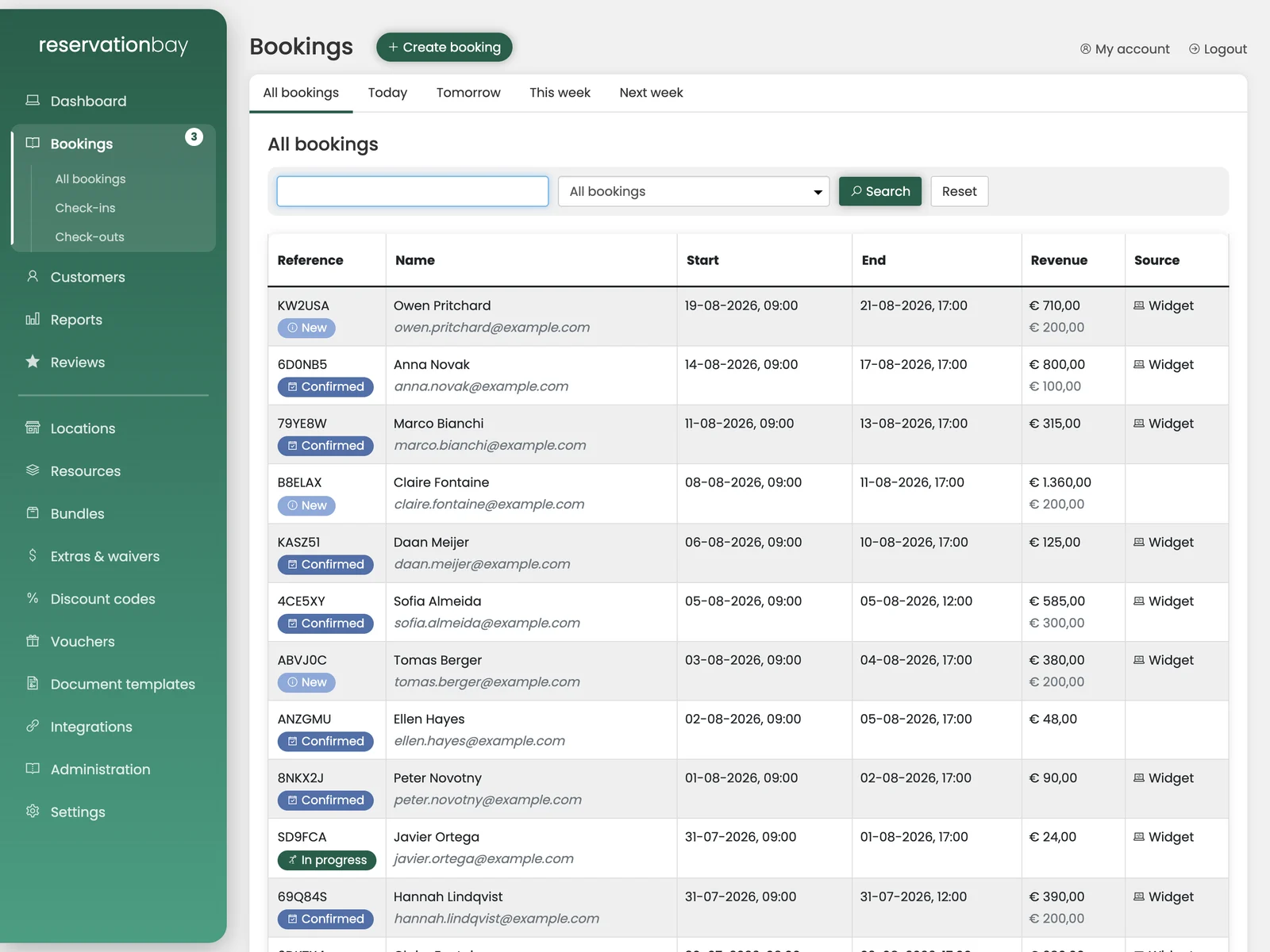
The screen has five tabs.
All bookings
Everything you have, newest first, with a search bar above it.
- The search box matches on booking reference and on the customer's name or email address. Type and press Search; Reset clears it.
- The status dropdown narrows the list to one booking status: new, confirmed, in progress, over time, completed, cancelled or expired. Filtering to New is the fastest way to work through what is waiting for you.
- Results are paginated; the page count sits under the table.
Each row shows the reference, the customer, the start and end of the rental, its revenue, and where the booking came from.
Source tells you who entered it:
| Source | Meaning |
|---|---|
| Portal | Someone on your team entered it at the counter. |
| Widget | A visitor booked it on your own website. |
| Site | It came from a ReservationBay-hosted page. |
| API | It came in through an integration. |
Clicking a row opens the booking.
Today, Tomorrow, This week, Next week
The four other tabs each show one period, and each shows it twice: as a calendar and as a table.
The calendar lays your objects down the side and the hours of the day across the top, so you can see at a glance what is out, what is free and where the gaps are. Blocks are coloured by source, green for bookings your team entered and blue for bookings that came from your website, with a legend above the calendar.
The calendar uses the location's opening hours for that day. If a location is closed on the day you are looking at, it says No opening time found for today instead of drawing an empty grid.
Under the calendar, the same bookings appear as a table so you can read the details and click through.
The Today tab is the one to keep open at the counter. It shows you what is going out and coming back without your having to filter anything.
What is not shown here
Cancelled and expired bookings still exist and are still searchable in All bookings, but they never occupy an object in the calendars. The object is free again the moment a booking is cancelled.