Resources (your stock)
A resource is one physical thing you own: bike 14, kayak 3, camera body B. Resources belong to a category and a location, and they are what actually gets reserved when someone books.
The portal uses both words for the same thing. The menu item and this page are Resources; the booking screens and the reports say object ("Select object", "1 object available", "Per object"). They mean the same physical item.
The list
Resources shows your stock, with a count of how many are active and how many are inactive at the top.
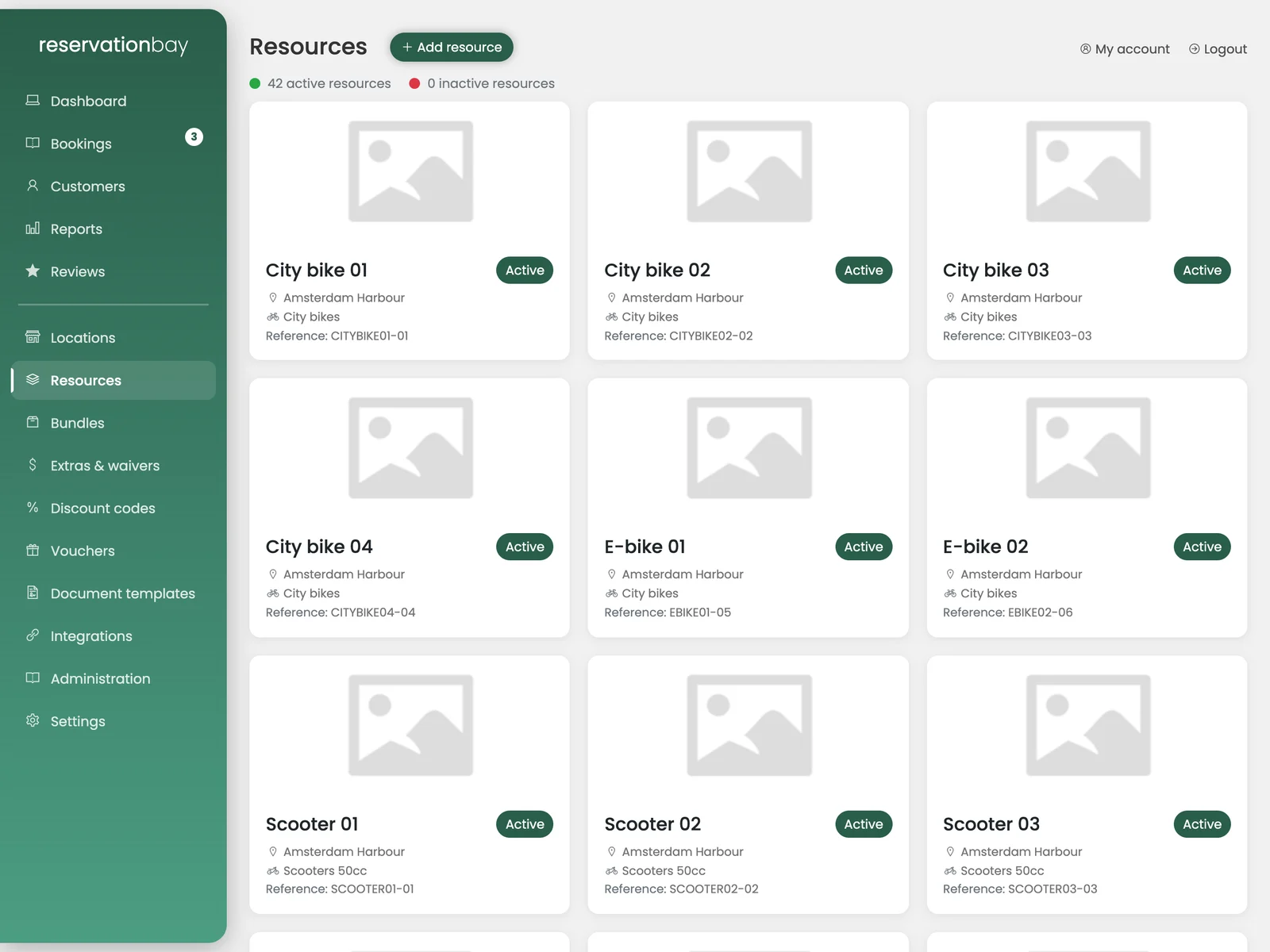
Each card shows the reference and, where they are filled in, the frame number, battery number and key number, plus an Active or Inactive badge. Clicking one opens it.
Creating objects
Add resource creates them, and it creates them in batches, which is what you want, because nobody types in forty bikes one at a time.
You pick the location, the category or categories, a quantity and a name, and ReservationBay creates that many numbered objects. The screen suggests a name like "27 inch (green)", a name that describes the kind, since each one gets its own number.
Up to 500 objects can be created at once.
Editing an object
The object screen has four tabs.
General
- Location and category: where it lives and what it is.
- Brand, name, colour.
- Reference: your own identifier, the one written on the object.
- Frame number, battery number, key number, IMEI number, all filled in where they apply to your kind of stock.
- Barcode / QR: used by the scan panel at handover and return.
- Size: for example "M" or "54cm". Leave empty when the category has no sizes; see Booking rules.
- Object is available for rent: the on/off switch described below.
Image
A photo of the object.
Bookings
Every booking this object has been on. This is where you look when a customer says "the last person left it filthy" and you want to know who that was.
Maintenance
A maintenance schedule. A maintenance window blocks the object from being booked for that period, at the counter and in the widget alike.
Use it for a service, a repair, or the winter. It is better than deactivating for anything with an end date, because the object comes back by itself.
Maintenance also shows up honestly in your occupancy report: days under maintenance reduce the time the object could have been rented, rather than counting as idle time you failed to sell.
Deactivating instead of deleting
Switching Object is available for rent off makes an object inactive: it cannot be booked, and the screen says so: inactive resources are not available for booking.
Deactivate rather than delete when something is sold, stolen, written off or out of service indefinitely. Its history stays intact, so your reports for past periods do not silently change.
Availability
Whether an object is free for a period is worked out from all of it at once: its existing bookings, its maintenance windows, its category's buffer times, and whether it is active. That single answer is what the counter and the widget both use, so they can never disagree.