Document templates
Document templates is where you write the paperwork your business hands over: the rental contract, the quote and the packing slip.
Documents are an optional feature, switch them on under Settings → Features.
The list
Your templates as cards, each labelled with its type. New template creates one; clicking a card edits it.
Writing a template
- Name: for you.
- Document type: rental contract, quote or packing slip.
- Content: the body of the document.
You write ordinary text and drop in placeholders where the booking's own details belong. The editor lists the available fields; clicking one inserts it at the cursor.
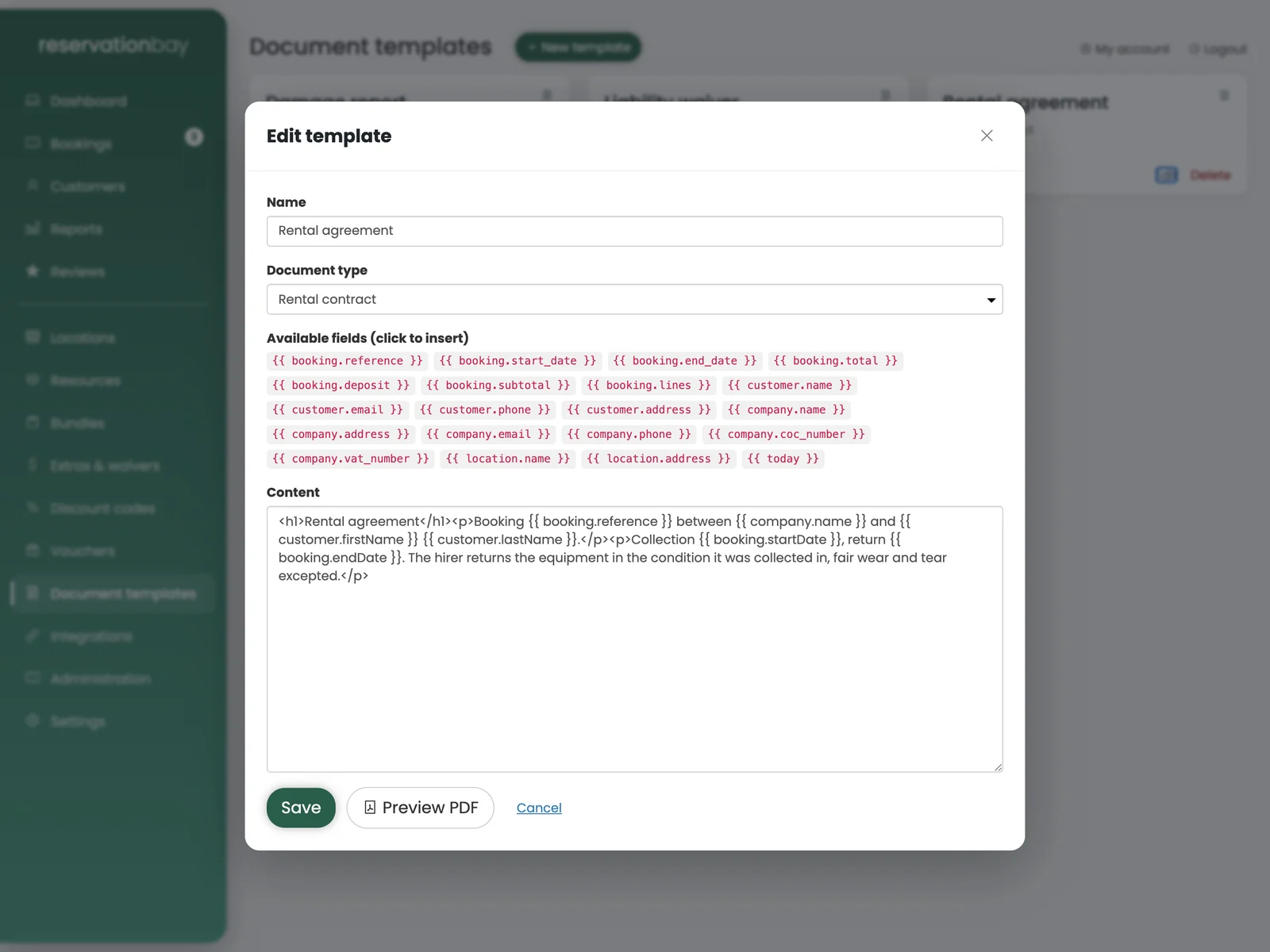
Placeholders fill themselves in from the booking, the customer, your company, the location and the booking lines: names, addresses, dates, objects, prices, the deposit, the totals.
Line breaks you type are line breaks in the output, both in the body and inside multi-line values like an address. What you type is what prints.
Previewing
Preview PDF renders the template you are looking at, even before you save it, with example booking data and your real branding, and opens it in a new tab.
Use it. A contract is one of the few things a customer reads carefully, and a placeholder in the wrong place is much easier to see than to imagine.
Your branding on every document
Every PDF is wrapped in your own branding automatically:
- a header with your company logo, or your company name if you have not uploaded one;
- your contact details;
- a legal footer with your company name, address, Chamber of Commerce number and VAT number, repeated on every page.
Upload your logo under Settings → General.
Generating a document from a booking
On the booking screen, Generate contract produces the filled-in PDF.
It uses the wording that was frozen onto that booking when it was made, not today's template. Rewriting your terms in September does not retroactively change what a customer agreed to in June, and the contract you reprint for that June booking is still the June contract.
Signing
If the signatures feature is on, a contract can be signed at the counter on a tablet, or remotely through a single-use link you email the customer. See the booking screen.
Deleting a template
Deleting asks for confirmation. Bookings that already froze their wording keep it, so deleting a template never changes an existing contract.